Directional Animation
Directional animation turns a character sprite sheet into walk cycles that face the way the character moves. This page covers the controller asset that holds the animations, how to import a sheet into it, and the component that plays them.
Concept
Two pieces work together, and their names are easy to mix up:
- Directional Animation Controller is an asset in your project. It holds a list of animations, and each animation holds the frames for every direction.
- DirectionalAnimation is a component on the character. It points at a controller, picks one
of its animations and draws the right frame on a
SpriteRendererevery frame.
One controller can serve many characters. The demo animals all share one, each playing a different animation from it.
A character can use 1, 2, 4 or 8 directions. With 4, a diagonal move shows the up or down frames. With 2, the character only faces down or up.
Creating a controller
- In the Project window, choose
Assets > Create > RpgMapEditor > Directional Animation Controller. ANew DirectionalAnimationControllerasset appears in the selected folder. - Select it and set the import settings described below before you drop any sprite sheet on it. They decide how the sheet is cut.
- Drag a sprite sheet texture from the Project window into the
Animationsbox.
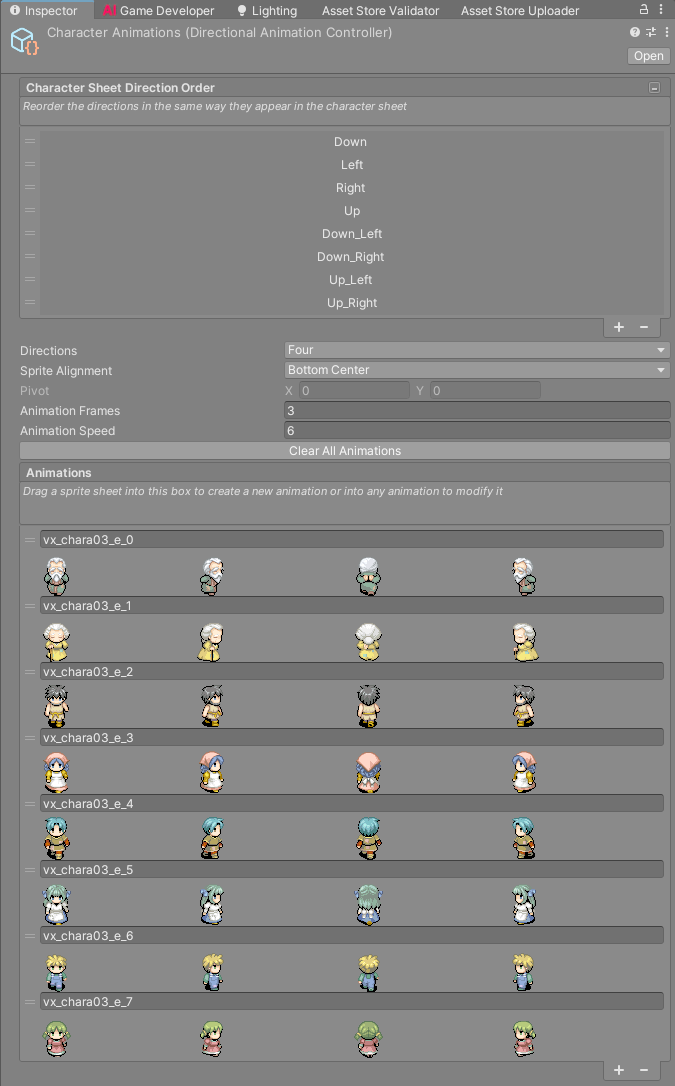
Import settings
| Field | What it does |
|---|---|
Character Sheet Direction Order |
The order of the rows in your sheet, top to bottom. The default is Down, Left, Right, Up, then the four diagonals, which is the RPG Maker layout. Drag the entries to match your sheet. The button at the right of the header folds the list away. |
Directions |
How many directions each animation has: Single, Two, Four or Eight. This is also how many rows one character takes in the sheet. |
Sprite Alignment |
The pivot given to every frame when a sheet is imported. The default, Bottom Center, puts the pivot at the character's feet. Changing it later re-applies the pivot to every sheet already used by this controller. |
Pivot |
The pivot position when Sprite Alignment is Custom. Greyed out otherwise. |
Animation Frames |
How many frames each direction has. This is how many columns one character takes. |
Animation Speed |
Frames per second of the preview in this inspector. The speed in game is set on each DirectionalAnimation component. |
Clear All Animations removes every animation from the controller, after asking.
Sprite sheet layout
The importer expects a grid where every frame has the same size:
- One row per direction, in the order of
Character Sheet Direction Order. Animation Framescolumns per direction.- No gaps between the blocks.
A sheet can hold several characters. Each character is a block Animation Frames wide and
Directions tall, and blocks sit side by side and on top of each other. A standard RPG Maker
character sheet with 4 by 2 characters, 3 frames and 4 directions works as it is.
Dropping a sheet
Where you drop the texture matters:
- On the
Animationsheader box, every character in the sheet becomes an animation. With one character it is named after the texture. With several, each gets the texture name plus_0,_1and so on, counting across then down. An animation that already has that name is overwritten instead of duplicated, so dropping a fixed sheet again updates it in place. - On an existing animation, its frames are replaced by the first character in the sheet.
You can rename an animation in its text field. The + button adds a copy of the selected
animation, and - or the Delete key removes it. Drag the handles to reorder.
Auto slicing or Sprite Multiple
You don't have to slice the sheet yourself. If the texture is not already cut into the right
number of sprites, the importer tries Unity's automatic slicing to find the frames and work out
how many characters the sheet has. If that fails too, it treats the whole texture as one
character. Then it cuts the sheet into an even grid and changes the texture import settings:
Sprite Mode becomes Multiple, Filter Mode becomes Point, mipmaps are turned off and
compression is set to none. Sprites are named after the texture with an index, like
hero_0, hero_1.
Automatic slicing needs a transparent gap around each frame. When frames touch, or a weapon sticks into the next cell, it can't separate them. In that case cut the sheet yourself:
- Select the texture and set
Sprite ModetoMultiple. - Open the
Sprite Editor, open theSlicemenu, setTypetoGrid By Cell Count(orGrid By Cell Size) and clickSlice, thenApply. - Drop the texture on the controller again.
When the texture is already Multiple and its sprite count is a whole number of characters, the
importer uses your slices as they are. Their names have to end in an underscore and a number,
which is how the Sprite Editor names them. The importer sorts frames by that number.
If the grid still does not fit, the Console shows "Something was wrong with the sprite sheet" and
nothing is imported. Check Directions and Animation Frames against the sheet.
When the 2D Sprite package is missing
Slicing and pivots go through Unity's 2D Sprite package (com.unity.2d.sprite). Without it, the
controller inspector shows a warning at the top, because sheets dropped on it are not sliced and
alignment changes are not applied. Click Install 2D Sprite package in that warning to add it through the
Package Manager.
Creating a character
The quick way is GameObject > RpgMapEditor > Directional Animation Character. It creates a
GameObject called Character with a SpriteRenderer and a DirectionalAnimation, places it at
the centre of the Scene view and selects it. Then drag your controller into the Dir Anim Ctrl
field.
To add animation to an existing object, use Add Component > RpgMapEditor > Animation >
DirectionalAnimation. It finds a SpriteRenderer on the object or its children by itself.
A character that walks around the map also needs a controller or an AI and a
PhysicCharBehaviour. See Characters and Vehicles.
The DirectionalAnimation component
| Field | What it does |
|---|---|
Dir Anim Ctrl |
The Directional Animation Controller to play from. The fields after Target Sprite Renderer only show once it is set. |
Target Sprite Renderer |
The renderer that shows the frames. Filled with the first SpriteRenderer found on the object or its children when left empty. Set it by hand when a character has several, like the player with its shadow and weapon. |
Play Mode |
Normal loops forward. Reverse loops backwards. Ping Pong plays forward, then backwards, and repeats. The fourth value (PingPong_Reverse in code) is a ping pong that starts backwards. |
Animation Speed |
Frames per second. |
Direction |
The direction the character faces. The controllers and AI scripts set it from the movement. |
Is Playing |
When off, the animation holds on the frame set by Stop Frame Index. The controllers turn this on while the character moves and off when it stops. |
Stop Frame Index |
The frame shown while Is Playing is off. Use -1 to freeze on whatever frame was showing. |
Animations |
The animations of the controller. Click the button at the right of the header to expand the list, then click an animation to play it. |
The inspector plays the animation in edit mode too, so you can check it without entering play mode.
Scripting
using UnityEngine;
using CreativeSpore.RpgMapEditor;

[RequireComponent(typeof(DirectionalAnimation))]
public class SimpleWalker : MonoBehaviour
{
    [SerializeField] private float m_speed = 1f;
    private DirectionalAnimation m_anim;

    void Start()
    {
        m_anim = GetComponent<DirectionalAnimation>();
        m_anim.SetAnim("hero_0"); // by name; logs an error if there is no such animation
    }

    void Update()
    {
        Vector2 move = new Vector2(RpgInput.GetAxis("Horizontal"), RpgInput.GetAxis("Vertical"));
        transform.position += (Vector3)move * m_speed * Time.deltaTime;

        m_anim.IsPlaying = move.sqrMagnitude > 0f;
        m_anim.SetAnimDirection(move); // ignored when the vector is zero, so the last facing stays
    }
}
This moves the transform directly, so it ignores tile collisions. For a character that collides
with the map, write the move into PhysicCharBehaviour.Dir instead, as CharBasicController does.
Other members you can use: AnimIndex selects an animation by its position in the list,
AnimDirection sets the facing directly as an eAnimDir, AnimSpeed and PlayMode match the
inspector fields, and GetAnimDirection() returns the facing as a unit vector.
Warning
Assign a controller with at least one animation before the component runs. Playing from a controller with an empty list throws an exception every frame.