Tile Collisions
Every tile in a tileset has a collision type that says whether characters can walk over it. This page lists the types, shows where to set them and explains how the map combines its layers into one answer.
Concept
Collision belongs to the tileset, not to the map. The tileset stores one collision type per tile, so a tree that blocks in one map blocks in every map that uses the same tileset.
The map answers collision questions from those types. There are no Unity colliders on the map. The sample characters test points around themselves against it, tile movement and pathfinding test whole tiles, and your own scripts can ask the same questions (see Scripting). Characters and Vehicles shows how the sample controllers use it.
Collision types
A tile has one of five types. The editors mark four of them with a symbol and leave Passable tiles unmarked.
| Type | Symbol | Effect |
|---|---|---|
| Passable | none | Walkable. On an upper layer it also makes a blocking tile below it walkable, which is how a bridge works. |
| Block | ■ | The whole tile blocks. |
| Wall | □ | Blocks a thin band along the outer edge of the painted autotile area. The inside stays open, but a character walking in from outside cannot cross the edge. |
| Fence | # | Horizontal runs block the whole tile. Vertical runs and fence ends block only a strip down the middle, half a tile wide. |
| Overlay | ★ | No collision. The tile is ignored when the map works out collision, and the Smart Brush paints it on an Overlay layer. See Layers. |
Wall and Fence depend on which neighbours an autotile has, so they are meant for autotiles. On a plain tile they give a patchy shape. Give plain tiles Block or Passable instead.
How the map decides
For a point on the map, the map looks through its layers from the top one down and only considers layers of type Ground:
- An empty cell, or a tile of type
Overlay, is skipped, and the search goes on to the layer below. - The first other tile found gives the answer:
Passable, or the part of the tile thatBlock,WallorFencecovers. - If nothing is found, the point is walkable.
So tiles on Overlay, Objects and Fog Of War layers never collide, whatever their type. A hidden Ground layer still does.
Pathfinding works per whole tile rather than per point. It treats Wall as walkable, because a wall tile only blocks its edge, and Block and Fence as blocked. See Pathfinding.
In play mode the map inspector shows Collision Enabled in its Settings tab. Turning it off makes the point check report every point as walkable, so the sample characters walk through walls and water. Tile movement and pathfinding do their own per-tile check and still see the collisions.
How to use it
In the Tileset Window
- Open the tileset's Tileset Window and go to the
Collisionstab. - Choose a sub-tileset in the
Tileset:popup. - Click tiles. The left mouse button moves a tile to the next type, the right button to the previous one. The order is Passable, Block, Wall, Fence, Overlay, and then back to Passable.
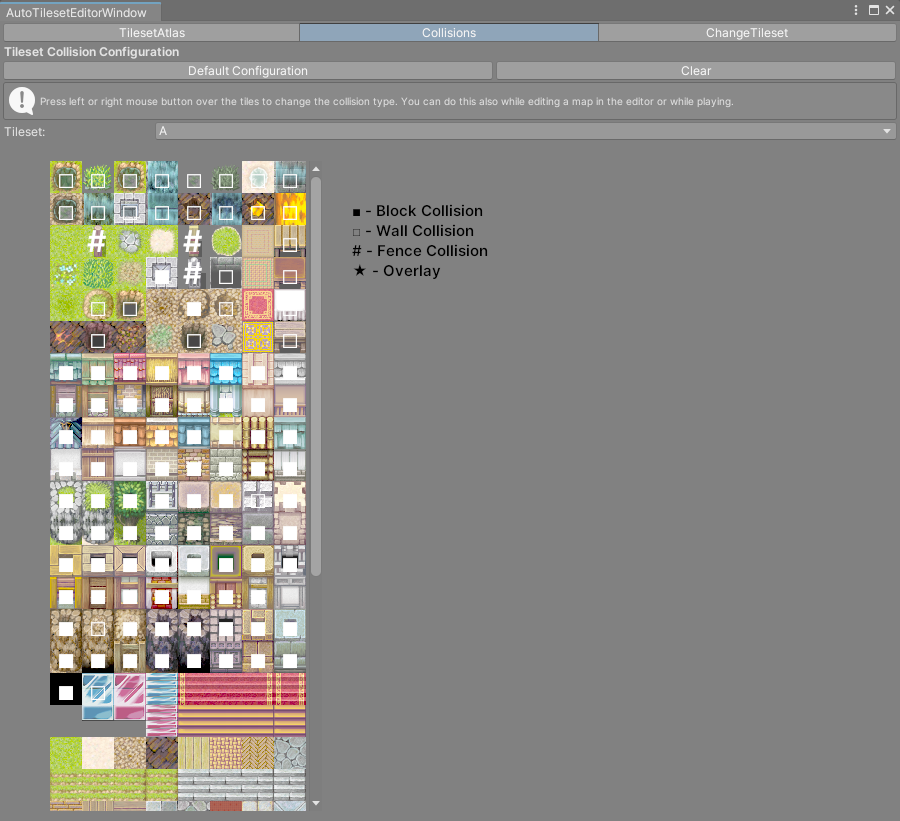
A legend to the right of the tiles repeats the symbols: ■ - Block Collision, □ - Wall Collision, # - Fence Collision and ★ - Overlay.
Two buttons above the tiles work on the selected sub-tileset only, and both ask Are you sure? first:
Clearsets all 256 tiles to Passable.Default Configurationsets RPG Maker style collisions: A1 tiles to Wall, A3 tiles to Block, and the A4 rows alternately to Wall (the wall tops) and Block (the wall faces). A2 and A5 tiles keep what they had.
Warning
Default Configuration writes to tile positions and assumes an autotileset. On a B to E sub-tileset it would set those same positions to Wall and Block on ordinary object tiles, so only use it on an A sub-tileset.
From the map inspector
You can also change collisions while painting, without leaving the map.
- Select the map, open the
Painttab and pressEdit. - Hold Shift. The help box above the palette changes to the symbol legend and the palette shows each tile's collision.
- Still holding Shift, click tiles with the left or right mouse button, as in the Tileset Window.
These changes are written into the tileset asset, the same as in the window.
The in-game map editor has its own way to do this. See In-Game Map Editor.
See the result on the map
Turn on Show Collisions in the map's Settings tab. The Scene view tints red every part of the map that is not walkable, in steps of a quarter tile, while the map is selected. It follows the same rules as characters do, so it shows the edges of Wall and Fence tiles as well as whole Block tiles.
The toggle only changes what the Scene view shows, and it is not saved.