Painting
This page covers painting, erasing and copying tiles in the Scene view, using the Paint tab of the map inspector and the RPG Map Editor overlay. It also explains which layer a tile ends up on, because that is what surprises people most.
Concept
You paint on a map that has both of its assets assigned and loaded: a Tileset for the art and a Map Data asset for the tiles. Getting Started walks through creating them.
Select the AutoTileMap GameObject, open the Paint tab in its inspector and press Edit. Painting is now on. Clicks in the Scene view go to the brush instead of Unity's selection, so clicking a character on the map no longer selects it. Pick it in the Hierarchy instead.
When you are done, press Commit. That writes the tiles into the Map Data asset and turns painting off. Saving and Loading explains what happens if you forget.
Every tile you paint goes onto one of the map's layers. Which one depends on the selected layer, the tile itself, the Smart Brush toggle and whether you hold Shift. The rules are further down this page, under Which layer a tile lands on.
The Paint tab
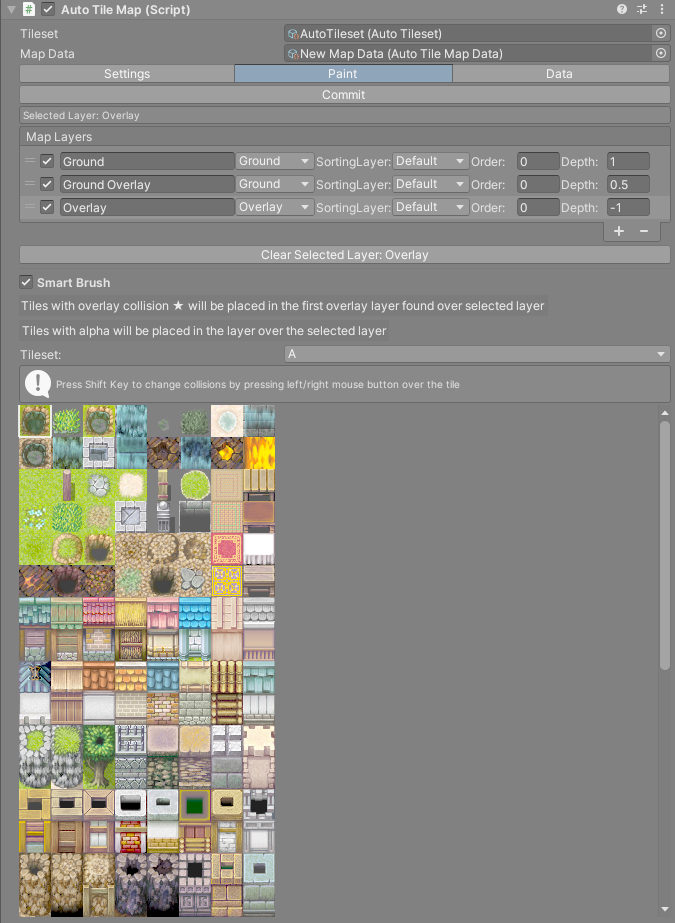
With painting off, the tab shows only the Edit button and a reminder to commit. With painting on, it shows these, top to bottom:
| Control | What it does |
|---|---|
Commit |
Saves the tiles into the Map Data asset and turns painting off. |
| Uncommitted changes box | Appears while tiles have changed since the last save, and names the Map Data asset they will go to. |
Selected Layer: <name> |
The layer the brush paints on. Click a row of the layer list to change it. |
Map Layers |
The layer list. Layers covers every column. |
Clear Selected Layer: <name> |
Empties the selected layer after a confirmation dialog. Brush undo does not bring it back. |
Smart Brush |
On by default. Sends tiles with transparency or overlay collision to a higher layer. The box under the toggle says what it will do. |
Tileset: |
Chooses which sub-tileset the palette shows. |
| Palette | The tiles of that sub-tileset. |
Painting is one switch for the whole editor, not one per map. It turns itself off whenever scripts recompile. Your tiles are saved before the recompile, so nothing is lost; press Edit again to carry on.
Picking tiles in the palette
The palette draws every tile 32 pixels wide, eight to a row, whatever the tile size of your tileset.
- Left click a tile to select it. A white frame marks it and the overlay shows its number as
Selected Tile Id. - Right click and drag over several tiles to select a rectangle. When you let go, the rectangle becomes the brush, and a translucent copy of it follows the mouse in the Scene view.
A single tile has no preview in the Scene view. Watch Brush Pos in the overlay to see which cell you are over.
Each tile in a palette rectangle gets its layer at the moment you release the button, from the selected layer and Smart Brush at that time. Select the layer first, then pick the rectangle.
Editing collisions from the palette
Hold Shift and the palette switches to collision editing. Each tile shows its collision symbol, and a legend replaces the usual hint. While Shift is held, a left click on a tile moves it to the next collision type and a right click moves it back.
Collisions are stored in the tileset asset, so a change here affects every map that uses the same tileset. Tile Collisions explains the types.
The RPG Map Editor overlay
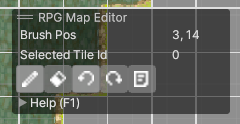
The Scene view gets an overlay called RPG Map Editor while an AutoTileMap is selected. Select anything else and it goes away. You can drag it, dock it or collapse it like any other Scene view overlay.
| Item | What it shows |
|---|---|
Brush Pos |
Column and row of the cell under the mouse. 0, 0 is the top-left cell of the map and the row number grows downwards. |
Selected Tile Id |
The id of the tile last picked in the palette or with a right click. It reads -2 after a Shift right click, because that copy is not a single tile. |
| Tool buttons | Only shown in the Paint tab with painting on. Otherwise the overlay says Press Edit in the Paint tab to paint. |
Help (F1) |
A foldout with a summary of the mouse and keys. F1 in the Scene view opens and closes it too. |
The tool buttons have no text. Hover them for their tooltips:
| Tooltip | What it does |
|---|---|
Paint |
Leaves erase mode and paints the tile selected in the palette, as a click in the palette does, through Smart Brush. In 1.6.1 it ignored Smart Brush and always painted on the selected layer. |
Erase |
Turns the brush into one empty cell on the selected layer. Only that layer is cleared. |
Undo Last Brush Action (Shift + Z) |
Undoes one brush action. Dimmed when there is nothing to undo. |
Redo Last Brush Action (Shift + Y) |
Redoes one brush action. Dimmed when there is nothing to redo. |
Display Help (F1) |
Opens or closes the help foldout. |
Erase mode ends as soon as you pick a tile in the palette or right click in the Scene view.
If the map has not finished loading, the overlay shows The map is not loaded yet. and nothing else.
Mouse and keys
These work in the Scene view while painting is on.
| Action | How |
|---|---|
| Paint | Left click, or left drag to paint every cell the mouse crosses. |
| Paint one layer up | Shift + left click or drag. |
| Copy one cell | Right click. |
| Copy a rectangle | Right drag, then release. |
| Copy only the layers above the selected one | Shift + right click or drag. |
| Undo a brush action | Shift + Z |
| Redo a brush action | Shift + Y |
| Show or hide the help | F1 |
| Pan the view | Middle mouse button. |
| Zoom | Mouse wheel. |
Ctrl does nothing in the Scene view, and Unity's own Ctrl+Z does not undo painting. The in-game editor uses its own set of keys, listed on In-Game Map Editor. Every shortcut in the asset is on Keyboard and Mouse.
Which layer a tile lands on
The brush does not always paint on the selected layer. With Smart Brush on, a single tile from the palette goes to an Overlay layer if its collision type is Overlay, to the layer above the selected one if it has transparent pixels, and to the selected layer otherwise. Shift sends a single tile to the layer above whether Smart Brush is on or off. Layers spells out the rules and the order they are checked in.
Only the selected layer changes when an opaque tile lands on it. So to change the ground under a tree without erasing the tree, select the ground layer and paint an opaque terrain tile over it.
Warning
The brush never paints on a hidden layer, an Objects layer or a Fog Of War layer. When a tile should go to the layer above and that layer is one of those, or the selected layer is the top one, the tile is not painted at all. Select a lower layer, or turn Smart Brush off.
A brush of several tiles
A rectangle from the palette or a copy from the map carries a layer for each of its tiles, and paints them there.
- A palette rectangle follows the
Smart Brushrules tile by tile, measured from the layer that was selected when you picked it. Shift plays no part at that point. - A copy from the map puts every tile back on the layer it came from. Empty cells are copied too, so pasting can clear tiles on those layers where you paint.
Hold Shift while you paint a multi-tile brush and the tiles meant for the selected layer go on the layer above instead. Empty cells then stop clearing that layer.
Copying from the map
Right click a cell to copy it. The copy holds that cell's tiles on every visible Ground and Overlay layer. Right drag to copy a rectangle; a green frame shows the area, and the brush is ready when you release the button.
The cell where you released the button is the one that follows the mouse when you paint, so the copy lines up with the corner you finished on.
Shift + right click, or Shift + right drag, copies only the layers above the selected layer. Use it to copy a tree without the grass under it: select the ground layer, then Shift + right drag over the tree. Empty cells on Overlay type layers come along in the copy. Empty cells on Ground type layers are left out, so the copy does not clear the ground where you paste it.
Undo and redo
Shift + Z undoes a brush action and Shift + Y redoes it, or use the two overlay buttons. The keys act when you release them, and only while the Scene view has keyboard focus.
The painting history belongs to the brush. It is separate from Unity's Edit > Undo. A few things to know about it:
- Every cell a drag enters is its own step, so undoing a long stroke takes one press per cell.
- The history is cleared whenever scripts recompile.
Clear Selected Layer,Clear Map...andGenerate Map...are not part of it.
Uncommitted changes
While tiles differ from what the Map Data asset holds, the Paint tab shows:
Uncommitted changes. Press Commit to save them into '<Map Data name>'. They are also saved when scripts recompile, the scene closes or play mode starts.
Commit is the way to be sure. Some actions reload the map from the asset and throw away uncommitted work, Reload Map among them. Saving and Loading lists them.