Saving and Loading
Where the tiles you paint are kept, when they get written to disk, and how to move a map in and out of the editor as an XML file. Read this before your first long painting session.
Concept
A map keeps its tiles in a Map Data asset (an AutoTileMapData file in your project), not in the scene. The asset holds:
- the map width and height, in tiles,
- the layer list: name, type, visibility, sorting layer, order in layer and depth,
- every tile of every layer, compressed.
The art and the tile collisions are not in it. Those belong to the Tileset asset, so the same Map Data looks different with another tileset.
Two scenes that use the same Map Data asset show the same map. Paint in one and the other changes too.
The scene also keeps a copy of the layer settings. When the map loads, the copy in the Map Data asset wins.
Creating a Map Data asset
Press Create... next to the Map Data field of a map that has none. Unity asks where to save it. The new asset is an empty 200 x 200 map with three layers: Ground, Ground Overlay and Overlay.
The Start Painting button in the welcome window (Tools > RpgMapEditor > Welcome) does the same and also sets up a new scene for you. See Getting Started.
When tiles are written to the asset
While you paint, the tiles change in memory. They reach the Map Data asset at these moments:
| When | What happens |
|---|---|
You press Commit in the Paint tab |
The map is written, every other modified asset in the project is saved, and painting turns off. |
| Scripts recompile, the scene closes, or you enter play mode | If there are uncommitted changes, the map is written first. The Console says RPG Map Editor: saved uncommitted map changes into '<name>'. |
| You select something else while painting is on | The map is written. |
| You add, remove or reorder a layer | The map is written straight away, uncommitted tiles included. |
You press Apply New Dimensions |
The map is written at the new size. See Changing the map size. |
Saving the scene with Ctrl+S does not write tiles. It saves the scene, and the tiles live in the Map Data asset.
While there are uncommitted changes, the Paint tab says so:
Uncommitted changes. Press Commit to save them into '<name>'. They are also saved when scripts recompile, the scene closes or play mode starts.
What throws uncommitted work away
These load the map from the asset again. Anything painted since the last save is gone:
Reload Mapin theDatatab,Reload Mapin theSettingstab, which appears after you changeCell Size,- assigning a different asset to the
Map DataorTilesetfield.
Since 1.6.1, each of these asks first when there is uncommitted painting: Save and Continue writes it into the Map Data asset, Discard Changes drops it, and Cancel keeps the map as it is. Import Map... asks too.
Warning
In 1.6.0 and earlier they do not ask. Press Commit before any of these.
Save Changes After Playing
Save Changes After Playing is a toggle in the Settings tab. It decides whether tiles changed during play mode are kept.
With it off, which is the default for new maps, anything that changes tiles while you play is thrown away when you stop. That covers the in-game map editor and your own scripts.
With it on, the map is written into its Map Data asset when play mode stops or another scene loads, but only if a tile actually changed while playing. The write cannot be undone. The inspector shows a warning while the toggle is on:
Tiles changed in play mode are saved into '<name>' when play mode stops or another scene loads. This cannot be undone, and any other scene using the same Map Data changes too.
Maps saved with an older version of the asset keep the value they had.
Note
Uncovering fog of war is not a tile change, so on its own it never triggers this save. If something else changed a tile during the same session, though, the fog is written too, as uncovered as it was when you stopped. Fog of War has the details.
In a player build nothing is written to disk this way. To let players keep a map in a build, see the Save and Load buttons of the in-game map editor.
The Data tab
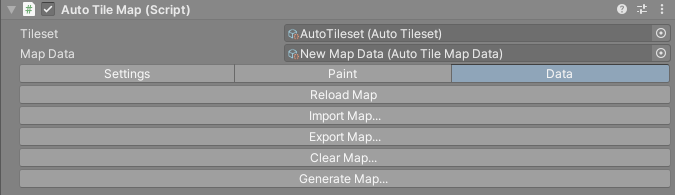
The Data tab is empty in play mode. In edit mode it has five buttons:
| Button | What it does |
|---|---|
Reload Map |
Loads the map again from the Map Data asset. Uncommitted painting is lost. |
Import Map... |
Asks for an XML file and replaces the map with it. |
Export Map... |
Writes the map into the Map Data asset, then saves a copy as an XML file you choose. |
Clear Map... |
Empties every layer after an Are you sure? dialog, and writes the empty map into the asset at once. |
Generate Map... |
Clears every layer, fills the first two with random terrain and writes the result into the asset at once. |
Clear Map... and Generate Map... cannot be undone, by brush undo or by Unity's.
Generate Map... is a demo. It paints fixed tile ids picked for the demo tileset (water, grass, flowers and mountains) onto layers 0 and 1. With another tileset those ids point at whatever tiles sit there. On a map of 160,000 tiles or more (400 x 400), the dialog warns that it can take several minutes.
Clear Map... also covers a Fog Of War layer completely again.
Import and export as XML
Export and import move a whole map through a plain XML file: the size, the layers and all the tiles. It works as a backup, or as a way to move a map into another project.
Importing replaces the size, the layer list and the tiles of the current Map Data asset with the file's, and saves the asset. Since 1.6.1 it first offers to save painting you have not committed, and the size fields on the Settings tab follow the imported map. In 1.6.0 and earlier the import stayed in memory until you pressed Edit and Commit, and Apply New Dimensions would resize it back to the old size.
A few things the file does not carry, and a few ways to break it:
- No tileset. The file stores tile ids, and an id is a position in the tileset. Import it on a map with a different tileset, or after moving sub-tilesets around, and you get different tiles.
- No collisions. Collision types live in the tileset.
- Tiles are compressed. Each layer is a list of numbers where a run of equal tiles is stored as a negative count followed by the tile id, and
-1means empty. Any other negative number is a count, so a stray minus sign moves every later tile in that layer. - Fog is stored shifted. A
Fog Of Warlayer does not hold tile ids. Changing a layer'sLayerTypein the file to or from fog scrambles that layer. - The version is the file format. The
versionvalue in the file (1.2.4) is the map format version, not the version of the asset.
If the tile count of a layer does not match the width and height, loading logs an error naming the layer. That usually means the data was edited or cut short.
Changing the map size
The Settings tab has Map Width and Map Height, in tiles. Type the new values and an Apply New Dimensions button appears. Press it to resize.
The top-left corner stays where it is. Growing the map adds empty columns on the right and empty rows at the bottom. Shrinking it cuts them from the same sides, and the tiles there are gone. A Fog Of War layer is covered in the new area.
Resizing writes the map into the asset, uncommitted painting included. It cannot be undone, so export an XML copy first if you are shrinking.
Loading
A map loads itself as soon as it has a Tileset with an atlas and a Map Data asset. It also reloads by itself after scripts recompile. On a big map that can take a few seconds.
If both assets are set and the map still has not loaded, the inspector shows:
The map has not loaded yet. It normally loads by itself in a moment. If this message stays, press Load Map.
Press Load Map to try again. If it keeps failing, see Troubleshooting.