Built-in Brushes
Super Tilemap Editor ships six brush types. This page covers what each one is for, the tile layout it expects, and how to fill it in its inspector.
Concept
All six are created from Assets > Create > SuperTilemapEditor > Brush:
| Menu item | Brush | Use it for |
|---|---|---|
AnimBrush |
AnimBrush | Animated tiles: water, torches, coins. |
RandomBrush |
RandomBrush | Picking a random tile from a weighted list, for grass or floor variation. |
RoadBrush |
RoadBrush | Paths, pipes and fences that are one tile wide, using 16 pieces. |
CarpetBrush |
CarpetBrush | Filled areas with borders and interior corners, from 13 tiles. |
Brush47 |
BrushFortySeven | Filled areas and thin shapes together, one full tile for every case. |
A2X2Brush |
A2X2Brush | Shapes built from four corner tiles split into quarters. |
Every brush inspector starts with Tileset, Show In Palette, Group and Autotiling Mode, described in Brushes. The rest of the inspector appears once Tileset is set.
After creating and filling a brush, register it with its tileset by pressing Import all brushes found in the project under the brush palette. See Create a brush.
Editing a tile grid
RoadBrush, CarpetBrush, Brush47 and A2X2Brush all show a grid of slots, one per tile the brush needs. They are edited the same way.
- Click a slot. It gets a yellow outline and the Tile Palette window opens.
- Click a tile in the Tile Palette. It goes into the selected slot.
- Repeat for each slot.
In RoadBrush, CarpetBrush and A2X2Brush an empty slot shows a small grey symbol of the neighbour pattern it is used for, so you can tell which piece goes where. Brush47 uses a guide pattern instead, described in its section.
Next to the grid, a box edits the selected slot:
| Field | What it does |
|---|---|
Flip Horizontally |
Mirrors the slot's tile left to right. |
Flip Vertically |
Mirrors the slot's tile top to bottom. |
Rotate 90º |
Rotates the slot's tile by 90 degrees. |
Brush |
Puts another brush in the slot instead of a tile. The slot then uses that brush's tile, so a road piece can be a RandomBrush or an AnimBrush. The brush must belong to the same tileset. |
Reset |
Empties the slot. |
You can also click a brush in the brush palette while a slot is selected to link it.
Two buttons fill many slots at once:
Autocomplete from selectionappears when the tiles selected in the Tile Palette match the grid's size. Select the whole block in the palette, then press it, and every slot is filled in grid order. The button writes plain tiles, so any flags or brush links already in the slots are cleared.Autocomplete relative to last changeappears when every slot is filled and you have just changed one slot to a different tile. It shifts every other slot by the same distance in the atlas. Use it to make a second brush from a set with the same layout: duplicate the brush, change one slot to the matching tile of the other set, and press the button. Slots that would move outside the atlas are emptied.
Tip
Arrange each brush's tiles in the atlas in the same pattern as its grid. You can then fill the brush in one step with Autocomplete from selection.
RoadBrush
A RoadBrush looks at the four cells north, east, south and west of each cell and picks one of 16 tiles, one for each combination. Diagonals are ignored.
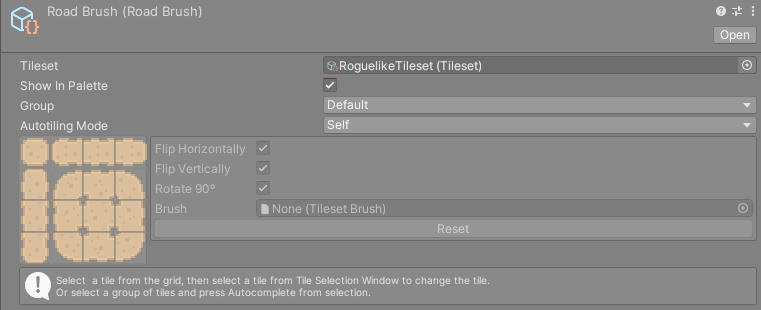
The inspector shows a 4x4 grid:
- The top row holds the single tile with no connections, then the horizontal pieces: the end that connects east, the middle that connects east and west, and the end that connects west.
- The first column below it holds the vertical pieces: the end that connects south, the middle that connects north and south, and the end that connects north.
- The 3x3 block in the bottom right holds the bends, the T junctions and the crossing. Its corners are the bends, its edges the T junctions, and its centre the four-way crossing.
The palette shows the top-left slot as the brush preview.
CarpetBrush
A CarpetBrush paints filled areas such as floors, carpets and grass patches. Painted areas get a border with outer corners, and inner corners appear where the area bends back on itself.
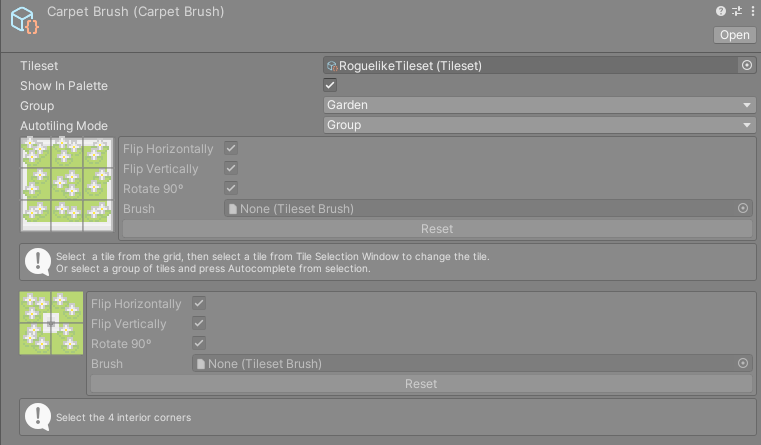
The inspector shows two grids.
The 3x3 grid is the area itself: top-left corner, top edge, top-right corner in the first row, then left edge, centre and right edge, then the bottom corners and bottom edge.
The 2x2 grid holds the four interior corners, the tiles used where a cell has neighbours on two sides but not on the diagonal between them. Each slot's inner corner faces the middle of the 2x2 grid, so the four tiles together look like a small hole cut in a filled area. The help box under it reads Select the 4 interior corners.
Fill the two grids separately. Autocomplete from selection works on each grid with a 3x3 or a 2x2 selection.
Some shapes have no tile of their own, such as single cells, lines one tile wide and cells with several missing diagonals. For those the brush splits the cell into four quarters and takes each quarter from the matching part of the tiles you set.
The palette shows the top-left corner as the brush preview.
Brush47
A Brush47 (the class is BrushFortySeven) looks at all eight neighbours. A diagonal neighbour only counts when both cells beside it also connect, which leaves 47 distinct cases, each with a full tile of its own. Use it when your art has a drawn tile for every combination, including thin lines and every mix of inner corners.
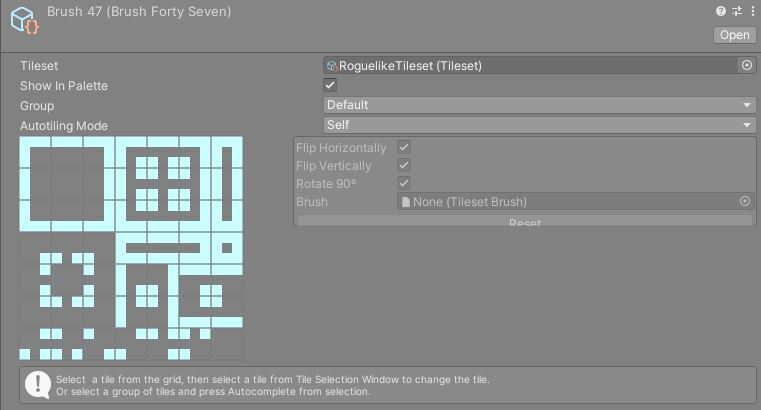
The inspector shows a 7x7 grid drawn over a light blue guide pattern. The pattern shows the shape each slot expects, so match your tiles to it:
- the 3x3 block in the top left is a filled area: corners, edges and centre,
- the 4x4 block to its right is the set of pieces one tile wide: ends, lines, bends, junctions, the crossing and the single tile,
- the remaining slots hold the inner corner combinations for cells that have a missing diagonal.
Two slots are never used: the second slot of the fifth row and the last slot of the last row. Leave them empty.
Autocomplete from selection appears here when the selection has 49 tiles. The palette shows the top-left slot as the brush preview.
A2X2Brush
An A2X2Brush is built from four tiles that form a closed 2x2 shape in the atlas, for example a small block with a corner in each tile.
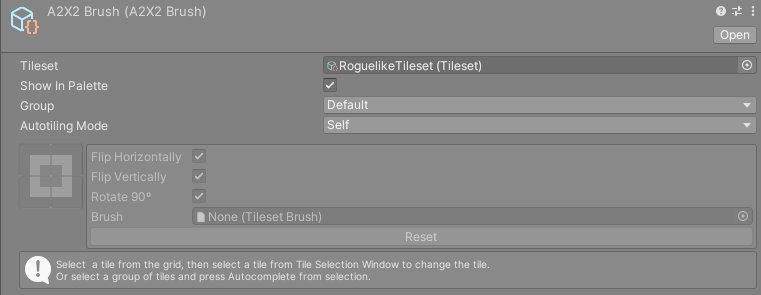
The inspector shows a 2x2 grid laid out like the shape: top-left, top-right, bottom-left and bottom-right.
Each painted cell is split into four quarters. A quarter shows the outer corner from the matching tile, unless the three neighbours around that corner (the two beside it and the diagonal) all connect. Then it shows the inner part of the shape instead. Along a straight edge the quarters still show corner pieces, so this brush suits art whose corners also look right side by side.
Some limits apply:
- All four slots must be filled. With an empty slot, the brush draws the bottom-left tile whole in every cell.
- The cell's collider always comes from the bottom-left tile.
- Slots that link another brush only show that brush's preview tile. Animations and random picks inside an A2X2Brush do not run.
RandomBrush
A RandomBrush paints a tile picked at random from a list. Each entry has a weight, and entries with higher weights come up more often.
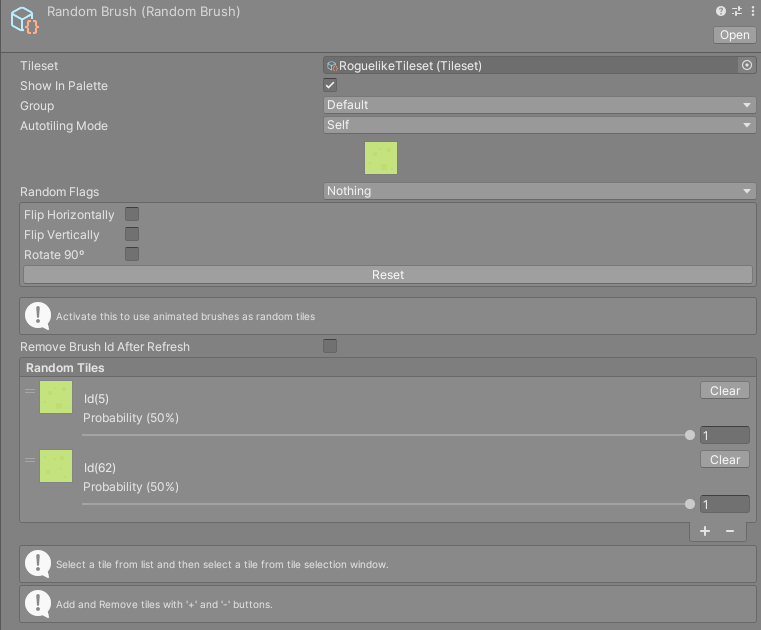
To fill the list:
- Press
+underRandom Tilesto add an entry. A new entry has weight 1. - Select an entry. The Tile Palette window opens.
- Click a tile in the Tile Palette to put it in the entry. You can also click a brush in the brush palette, for example an AnimBrush.
To add many at once, select a block of tiles in the palette and press Add tiles from tile selection. Each tile becomes an entry with weight 1.
Each entry shows its tile, its id as Id(n) or Brush Id(n), a weight slider from 0 to 1, and Probability (n%) with the resulting chance. Clear empties the entry. An empty entry is a valid pick and paints nothing, which is how you scatter tiles with gaps. If every weight drops to 0, the one you are editing is set back to 0.01.
Other fields:
| Field | What it does |
|---|---|
Random Flags |
Flip and rotation flags to randomise. Each checked flag (Rot 90, Flip Horizontal, Flip Vertical) is turned on or off at random for every painted cell, replacing that entry's own setting. Unchecked flags keep the entry's setting. |
| Flags box | Flip Horizontally, Flip Vertically, Rotate 90º and Reset for the selected entry. |
Remove Brush Id After Refresh |
Hands the cell over to the picked entry. See below. |
The first entry is the brush preview in the palette.
Remove Brush Id After Refresh
With this off, a painted cell stays a RandomBrush cell. It rolls a new tile every time it is refreshed: when a neighbour it connects to is painted, when you press Refresh Map or F5, or when the map bounds change size. If the picked entry is an AnimBrush, the cell shows that brush's first frame and does not animate.
With this on, the cell rolls once and then becomes the picked entry. A tile entry leaves a plain tile, and an AnimBrush entry leaves an AnimBrush cell that animates. Later refreshes do not roll it again, and right clicking the cell picks the tile or the AnimBrush rather than the RandomBrush. The inspector's help box reads Activate this to use animated brushes as random tiles.
AnimBrush
An AnimBrush plays a list of frames in a loop. Its clock is real time rather than game time, so the animation also plays in the editor and Time.timeScale does not slow it down.
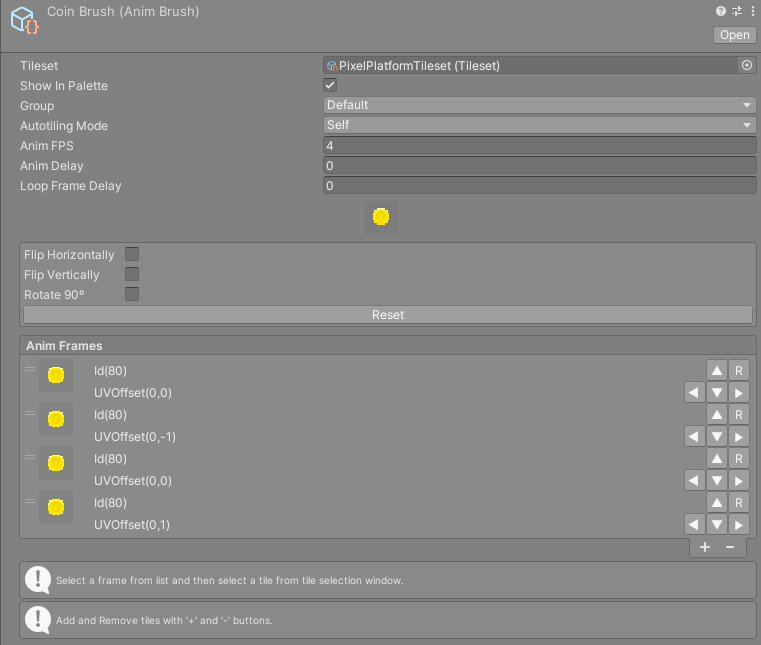
To fill the frame list:
- Press
+underAnim Framesto add a frame. - Select the frame. The Tile Palette window opens.
- Click a tile in the Tile Palette to use it for that frame.
To add many at once, select the frames in the palette and press Add tile selection as animation frames.
Each frame shows its tile, Id(n) and UVOffset(x,y) in pixels. The buttons on the right of each frame nudge the part of the atlas the frame reads from by one pixel, which helps with frames that are not aligned to the tile grid. R resets the offset. The box above the list sets Flip Horizontally, Flip Vertically and Rotate 90º for the selected frame.
| Field | What it does |
|---|---|
Anim FPS |
Frames per second. |
Anim Delay |
Seconds added to each animated cell's clock, multiplied by the cell's position among the animated cells of its chunk. Use a small value so copies next to each other do not play in lockstep. 0 keeps them in sync. |
Loop Frame Delay |
Extra frames to hold the last frame before the loop starts over. With Anim FPS at 4 and this at 8, the last frame stays up two seconds longer. |
The animated preview between the fields and the list shows the result. The palette plays it too.