Map
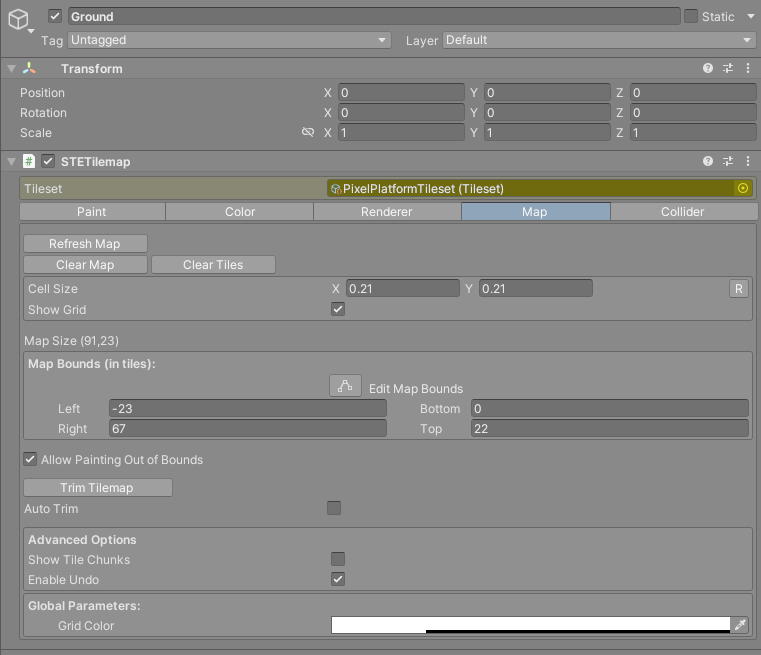
The Map tab holds the tilemap's grid settings, its bounds and the maintenance buttons: refresh, clear and trim. It also has the Enable Undo switch for painting.
Concept
A tilemap has no fixed size. Its map bounds are the rectangle of cells it currently covers, and painting outside them grows them to fit. The bounds decide where the grid and the outline are drawn, where the fill tool can spread, and what Map Size reports.
The bounds always include cell (0, 0), the cell whose lower left corner sits on the tilemap's pivot. You cannot shrink them past it.
Reference
Buttons
| Button | What it does |
|---|---|
Refresh Map |
Rebuilds every chunk of the tilemap: meshes, colliders, tile prefabs and brushes. Use it after changing tile properties or brushes in the tileset. With several tilemaps selected it refreshes all of them. |
Clear Map |
Deletes every tile and resets the bounds to the single cell (0, 0). |
Clear Tiles |
Deletes every tile but keeps the bounds as they are. |
Both clear buttons ask Are you sure you want to clear the map? first, and both remove every child GameObject of the tilemap, not only the chunks. That includes tile prefabs and anything else you parented to the tilemap. You can undo a clear with Ctrl+Z.
Grid
| Field | What it does |
|---|---|
Cell Size |
The size of one cell in the tilemap's local units. A new tilemap takes it from its tileset. |
R |
Resets Cell Size to the tileset's tile size in pixels divided by its pixels per unit. |
Show Grid |
Draws the cell grid in the Scene view. |
Cell Size does not have to match the tile images. A tile is stretched to fill its cell, so a cell size larger than the tile scales the art up.
The grid is a gizmo. It needs the Scene view's Gizmos toggle on, it only draws when you are zoomed in close enough to see individual cells, and it follows the same rule as the collider outlines, set by Collider Display Mode in the Collider tab. With the default, Selected, it shows while the tilemap is selected, or while its Tilemap Group is selected with this tilemap picked in the list.
Bounds
| Field | What it does |
|---|---|
Map Size (w,h) |
The size of the bounds in cells. Read only. |
Edit Map Bounds |
Toggles handles in the Scene view for dragging the edges of the bounds. |
Left, Bottom, Right, Top |
The bounds as cell coordinates. Left and Bottom cannot go above 0, Right and Top cannot go below 0. |
Allow Painting Out of Bounds |
On by default. When off, cells outside the bounds cannot be painted or colored, from the editor or from a script. |
Trim Tilemap |
Shrinks the bounds to the smallest rectangle around the tiles, still keeping cell (0, 0). Its tooltip is Shrink to Visible Area. |
Auto Trim |
Trims the bounds every time the tilemap rebuilds. |
To edit the bounds in the Scene view, turn on Edit Map Bounds. Four green square handles appear, one in the middle of each edge. Drag them and the bounds snap to whole cells.
Growing the bounds is how you give the fill tool room. Painting explains why the fill stops at the edge.
A locked map is useful when a level has a fixed size: set the bounds, turn off Allow Painting Out of Bounds, and stray clicks outside the level do nothing.
Advanced Options
| Field | What it does |
|---|---|
Show Tile Chunks |
Shows the chunk GameObjects in the Hierarchy, for debugging. When you hide them again, the Hierarchy catches up after you collapse and expand the tilemap. |
Enable Undo |
Records painting for undo. On by default. Tooltip: Disable Undo when painting on big maps to improve performance. |
With Enable Undo on, every paint, erase, fill or cut records the tilemap and all of its chunks before changing anything. The cost grows with the number of chunks, so a large map paints noticeably slower. Turn it off for the rough pass on a big level and back on when you start the detail work. While it is off, painting cannot be undone.
Global Parameters
| Field | What it does |
|---|---|
Grid Color |
The color of the grid lines. It applies to every tilemap and is saved on your machine, not in the scene. |