Color
The Color tab lets you paint vertex colors over the tiles of a tilemap with a round brush in the Scene view. Use it for shading, light pools, fog at the edge of a map or tinting one area without making new tiles.
Concept
Every tile is a quad with four vertices, and each vertex can carry a color. The tile's image is multiplied by that color when it is drawn, as long as the material uses vertex colors, which the default sprite material does.
The color belongs to the cell, not to the tile. Erase a tile or paint a different one over it and the cell keeps its color. Until you paint any color, a tilemap has no color data at all and every tile draws plain white.
The Tint Color in the Renderer tab is separate. It tints the whole tilemap through the material, on top of whatever you paint here.
How to use it
- Select a tilemap and open the
Colortab. - Pick a
Colorand aBlend Mode. - Move the mouse over the Scene view. A circle shows the brush and its
Radius. - Click or drag with the left mouse button to paint.
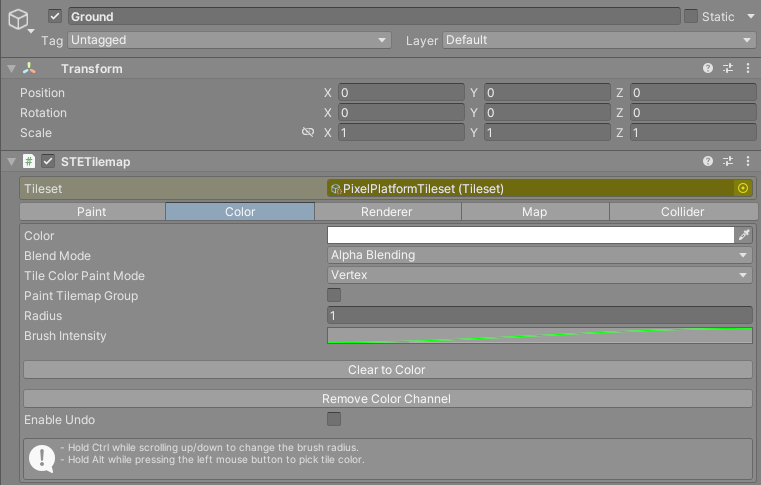
In the Scene view:
| Action | How |
|---|---|
| Paint | Left mouse button, click or drag. |
| Change the radius | Hold Ctrl and scroll. |
| Pick a color from a tile | Hold Alt and click. The picked color keeps the alpha of your current color. |
Reference
| Field | What it does |
|---|---|
Color |
The color you paint with. Its alpha is how strongly it blends. |
Blend Mode |
How the painted color combines with the color already on the vertex. See below. |
Tile Color Paint Mode |
Vertex colors each corner of a tile on its own, by its distance to the brush center, so colors fade smoothly across tiles. Tile gives all four corners the same color, taken at the tile's center, for a blocky look. |
Paint Tilemap Group |
Only shown when the tilemap is in a Tilemap Group. Paints every visible tilemap in the group at once. The two buttons below then act on every visible tilemap in the group too. |
Radius |
Brush radius in the tilemap's local units, the same units as Cell Size. |
Brush Intensity |
A curve that scales the color's alpha across the brush. The left end is the rim of the circle and the right end is its center. The default curve fades from nothing at the rim to full at the center. |
Clear to Color |
Sets every cell of the tilemap to the current Color. |
Remove Color Channel |
Deletes the tilemap's color data, so every tile draws white again. |
Enable Undo |
Records color painting for undo. Off by default, and it slows color painting down while on. |
Blend modes
| Mode | Effect |
|---|---|
None |
Writes the color as it is, alpha included, replacing what was there. |
AlphaBlending |
Blends toward the painted color by its alpha. Fully opaque paint replaces the color. |
Additive |
Adds the color, which brightens. |
Subtractive |
Subtracts the color, which darkens toward black. |
Multiply |
Multiplies by the color, which darkens and tints. |
Divide |
Divides by the color, which brightens. |
Apart from None, the modes keep the vertex alpha as it was. The one exception is AlphaBlending at full strength, which replaces the whole color and so makes the vertex opaque. To make tiles partly transparent, paint with None and a color whose alpha is below 1.
Note
The brush settings live in the editor, not in the scene. They are shared by every tilemap and go back to their defaults when you enter Play mode or when scripts recompile. The same goes for Enable Undo, which switches itself off again.
Erasing color
There is no color eraser. To undo painted color you can:
- use
Ctrl+Z, ifEnable Undowas on while you painted, - paint white with
NoneorAlphaBlendingover the area, - press
Clear to Colorwith white, orRemove Color Channel, to reset the whole tilemap.