Tilemaps
This section covers the STETilemap component: how you create one, what each tab of its inspector is for, and how it sits in the scene. Read it once you have a tileset and want to start building a level.
Concept
A tilemap is a GameObject with an STETilemap component. It draws tiles from exactly one tileset onto a grid of cells, and you can paint as far as you like in any direction. The map grows its bounds to fit whatever you paint.
The tilemap itself stores no tiles. They live in hidden child objects called chunks, each covering 60 by 60 cells with one mesh and one set of colliders. You never edit a chunk directly, but it explains a few things you will see later, such as collider outlines that break at chunk borders. How It Works has the details.
For levels with several layers (background, ground, decoration) put one tilemap per layer under a Tilemap Group.
How to use it
- Choose
GameObject > SuperTilemapEditor > Tilemap. A GameObject calledNew Tilemapappears and is selected. If you had a GameObject selected, the new tilemap becomes its child. - Drag a tileset into the
Tilesetfield at the top of the inspector. Until you do, the inspector only shows the messageThere is no tileset selected. - With a tileset assigned, a row of tabs appears:
Paint,Color,Renderer,MapandCollider. - Stay on
Paint, pick a tile in the palette and click in the Scene view to paint.
You can also add the component by hand with Add Component > SuperTilemapEditor > STETilemap.
The first time a tileset is assigned, the tilemap sets its cell size from the tileset: tile size in pixels divided by pixels per unit. You can change it later in the Map tab.
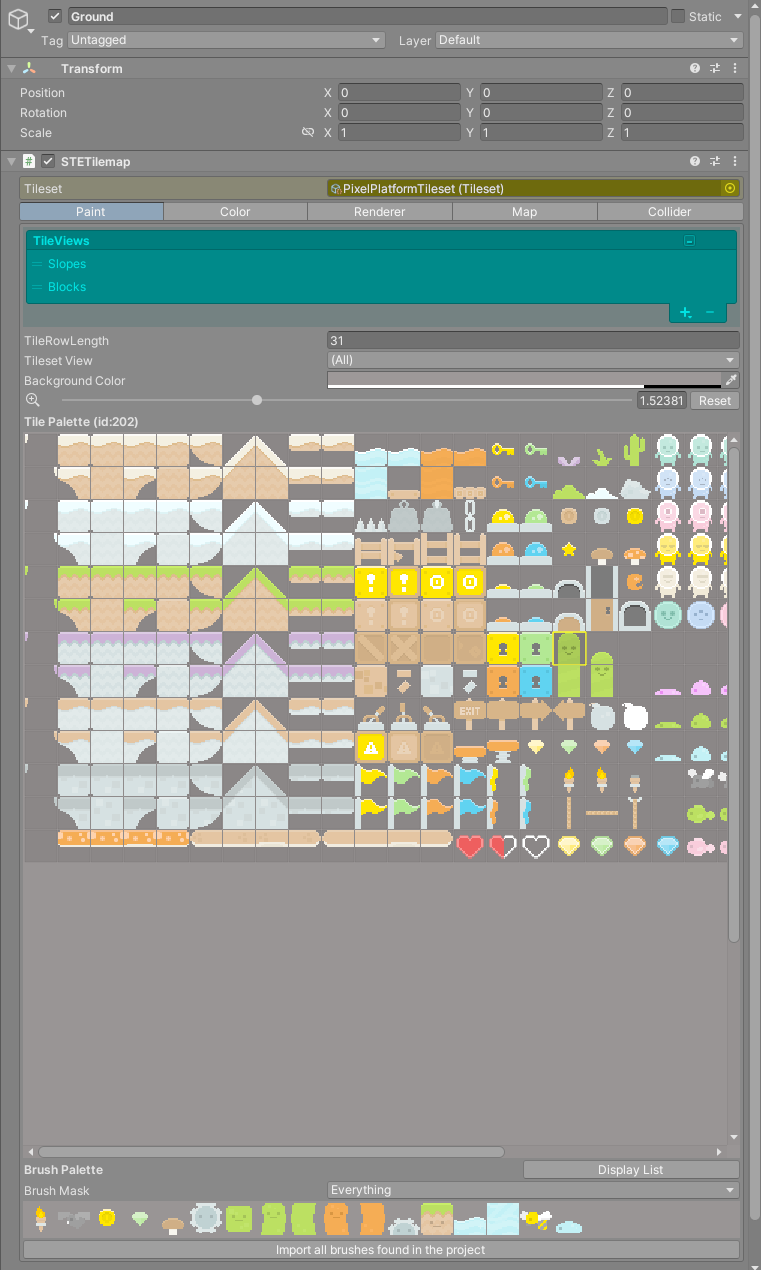
The inspector tabs
| Tab | What it is for |
|---|---|
Paint |
Shows the tile palette. While this tab is open, clicking in the Scene view paints tiles. See Painting. |
Color |
Paints vertex colors over tiles with a round brush in the Scene view. See Color. |
Renderer |
Material, tint, parallax, sorting, the tile seam fix and renderer options. See Renderer. |
Map |
Cell size, grid, map bounds, clearing and trimming, undo. See Map. |
Collider |
Collider type and options, and editing tile collider shapes in the Scene view. See Colliders. |
The selected tab is shared by every tilemap, and it also decides what the Scene view does. Painting only happens on Paint, color painting only on Color, and so on. When you enter Play mode the tab goes back to Paint.
The transform
A tilemap is a flat plane in its own local XY space. Move, rotate and scale it with the Transform like any other object and the tiles follow. Painting still works on a rotated or scaled tilemap: the editor finds the cell under the mouse on the tilemap's plane, and the brush preview takes the tilemap's rotation and scale.
Some uses:
- Stand a tilemap up as a wall or lay it flat as a floor in a 3D scene.
- Scale a whole layer without changing its cell size.
- Offset a layer by half a cell to fake depth.
Grid positions are always in the tilemap's local space, so cell (0, 0) starts at the tilemap's pivot whatever the transform does. Scripts that convert between world positions and cells need to go through the tilemap's transform, which Positions and the Mouse explains.