Brush Groups
Brush groups control which brushes and tiles autotile with each other. This page covers naming groups, the group autotiling mask, and every autotiling mode a brush can use.
Concept
An autotiling brush looks at the cells around each tile it paints and picks the right piece, a corner or an edge for example, depending on which neighbours count as "the same thing". The brush's Autotiling Mode decides what counts. By default a brush only joins up with tiles painted by itself.
Groups widen that. Each tileset has 32 group slots, a bit like Unity's layers. You put brushes and tiles in groups, then tick which groups join up with which. A grass brush in a Ground group can then join up with a dirt brush in the same group, or with any tile you placed in Ground.
Groups only matter to brushes whose Autotiling Mode includes Group.
How to use it
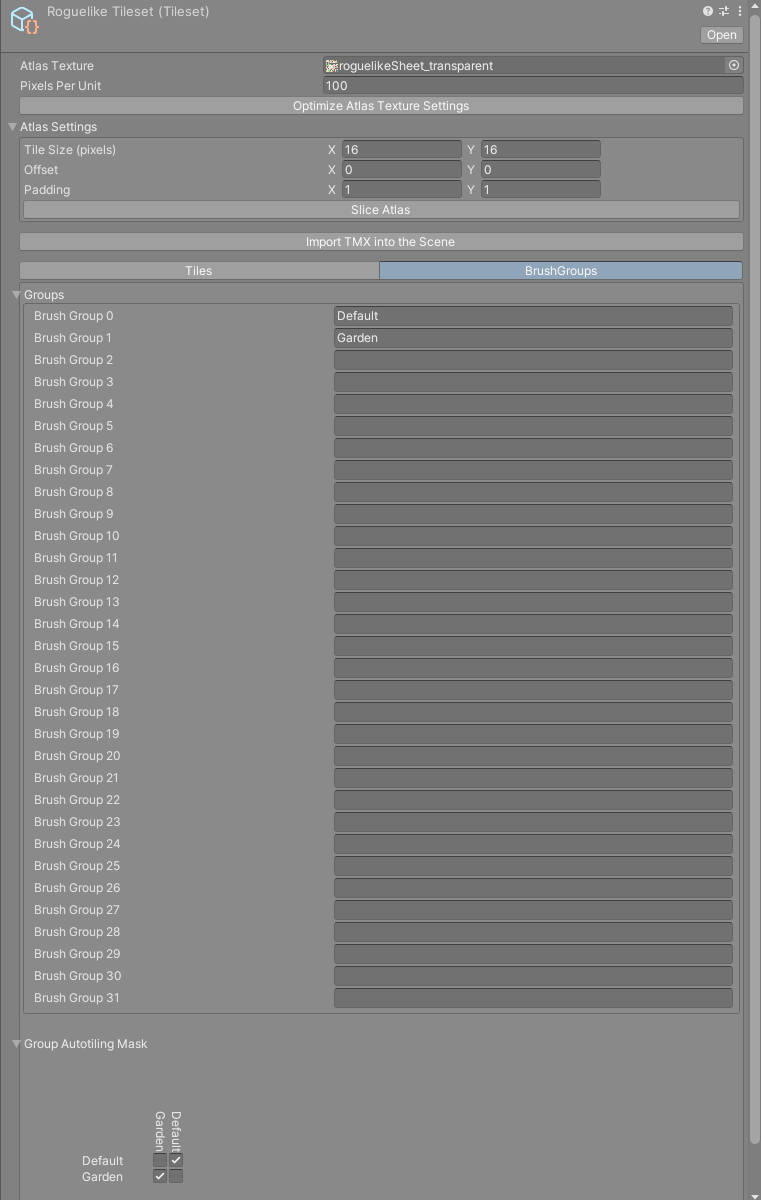
Name the groups
- Select the tileset and open the
BrushGroupstab in the inspector. - Open the
Groupsfoldout. It listsBrush Group 0toBrush Group 31. - Type a name into an empty slot to start using it.
Slot 0 is named Default in a new tileset. Every tile and every brush starts in it.
Only named slots appear in the group popups and in the mask. Clearing a name hides that group again, and any brush or tile still in it shows an empty Group field.
Give every group a different name. The popups find a group by its name, so of two groups with the same name only the first can be picked.
Put brushes and tiles in groups
- For a brush, set
Groupin the brush's inspector, or in theAutotilingtab of the Tile Properties window with the brush selected. - For a tile, select it in the palette and set
Groupin theAutotilingtab of the Tile Properties window. You can select a rectangle of tiles to set them all at once.
See Tile Properties.
Set the group autotiling mask
Open the Group Autotiling Mask foldout below the groups. It is a grid with one row and one column per named group. Group names run down the left side and, rotated, along the top. The columns are in reverse order. Hover over a checkbox to see its pair as a tooltip, like Grass/Water.
Each checkbox is one direction:
- the row is the group of the brush doing the autotiling,
- the column is the group of the neighbour it looks at.
Ticking row Grass, column Water makes grass brushes join up with water. It does not make water brushes join up with grass. Tick both cells if you want it to work both ways.
A new tileset has each group ticked against itself and nothing else.
Brush tiles already on a map keep the pieces they have until you refresh the tilemap. Press Refresh Map on its Map tab, the refresh button on the Scene view toolbar, or F5 while painting; see Map.
How a Group brush reads its neighbours
With Group in its mode, a brush looks up its own group's row of the mask, and any one match is enough:
- For a neighbour painted with a brush, it checks the other brush's group and the group of the tile that brush drew, which is usually
Default. - For a plain tile, it checks the tile's group, set in Tile Properties, and also the
Defaultcolumn, whatever group the tile is in.
The Default column therefore decides a lot. A new tileset ticks Default against itself and every tile starts in Default, so a Group brush left in Default joins up with every plain tile and with most brush tiles. Move the brush to its own group and keep the Default cell of its row unticked unless you want it to join up with plain tiles.
Autotiling modes
Autotiling Mode is set per brush, in the brush's inspector or in the Autotiling tab of the Tile Properties window. It is a multiple choice field: tick as many modes as you need, and a neighbour matches when any of them matches. New brushes start with Self.
| Mode | A neighbour matches when |
|---|---|
Self |
It was painted with this same brush asset. |
Other |
It holds anything that is not empty and was not painted with this brush: plain tiles and other brushes. |
Group |
This brush's row of the mask ticks the neighbour's brush group or tile group, as described above. |
Empty Cells |
It is empty. |
Tilemap Bounds |
It lies outside the tilemap's map bounds. |
Skip Other Brushes |
Never. This mode rules out neighbours instead: a cell painted with a different brush asset never matches, whatever the other modes say. |
Tilemap Bounds is useful for walls that should continue off the edge of a level instead of closing into a corner. Map bounds are covered in Map.
Skip Other Brushes is meant to be combined with the others. With Other and Skip Other Brushes together, a brush joins up with plain tiles but not with tiles from other brushes.
Note
Skip Other Brushes also treats empty cells as painted by another brush. With it ticked, Empty Cells never matches.
The mode's tooltip in the inspector describes Self as matching brushes of the same type. The code compares the brush itself: two different road brushes do not match each other through Self.