Keyboard and Mouse
Every keyboard and mouse control Super Tilemap Editor adds to the scene view, the tile palette and its windows, grouped by where you use them. The pages that explain each tool are linked at the bottom.
Before a shortcut works
Most scene view shortcuts only answer while a tilemap, or a tilemap group, is selected and the matching tab is open in its inspector. The majority belong to the Paint tab.
Keys go to whichever window has keyboard focus. Clicking a tile in the palette gives the focus back to the scene view, so you can press a key straight after picking it.
The paint tool keys and the brush flip and rotate keys also need the mouse over the scene view, and Unity's Rect tool (T) or no transform tool active.
On macOS, read Alt as Option. The scene view reads the Control key itself, so Ctrl in the scene view tables means Control on a Mac as well. The Tile Properties window is the one place that uses Command instead.
Painting in the scene view
With the Paint tab open:
| Input | Action |
|---|---|
| Left click or drag | Paint the selected tile, brush or tile block. |
Shift + left click or drag |
Erase, with the paint tool. The erased area is the size of the current brush. |
| Double-click | Flood fill from the clicked cell, when a single tile or brush is selected. |
| Right click | Pick up the tile under the cursor. If it was painted with a brush, the brush is selected. |
Alt + right click |
Pick up the tile itself, even when it was painted with a brush. |
| Right-drag | Copy the rectangle of tiles you drag over into the brush. |
Shift + right click or right-drag |
Cut: copy the tiles into the brush and clear them from the map. |
Ctrl + right click |
In a tilemap group, pick up the tile from the first visible tilemap, from the top of the list down, that has a tile in that cell, and select that tilemap. |
| Middle-drag | Pan the scene view. This is Unity's own control and painting leaves it alone. |
| Unity's Undo and Redo | Undo and redo paint, erase, fill and cut (Ctrl + Z and Ctrl + Y on Windows). Turning off Enable Undo in the Map tab stops these operations recording undo steps. |
F1 |
Show or hide the help panel in the scene view. |
F5 |
Refresh the tilemap: rebuild its meshes, colliders and tile prefabs. |
Right-clicking an empty cell picks up an empty tile. Painting with it erases.
Paint tools
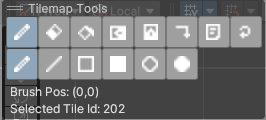
These pick the shape the left button draws. They match the second row of the Tilemap Tools overlay.
| Key | Tool |
|---|---|
B |
Paint. Draws the brush wherever you click or drag. |
L |
Line |
R |
Rectangle. Press again to toggle between the outline and the filled rectangle. |
E |
Ellipse. Press again to toggle between the outline and the filled ellipse. |
Each of these keys also switches the first row back from erase or fill to paint.
While you drag a shape:
| Modifier | Line | Rectangle, filled rectangle | Ellipse, filled ellipse |
|---|---|---|---|
Ctrl |
Draws the line in both directions from where you pressed, so that point is its centre. | The point you pressed becomes the centre. | The point you pressed becomes the centre. |
Shift |
Keeps the sides equal, for a square. | Keeps the sides equal, for a circle. | |
Alt |
Draws the tile selection as a 9-slice. Its corner tiles go in the corners, its edge tiles repeat along the sides and, when filled, its middle tiles repeat inside. |
The shape is only a preview until you let go of the button. Nothing is written to the tilemap before that.
Flipping and rotating the brush
These change the brush you are about to paint with, not tiles already on the map.
| Key | Action |
|---|---|
X |
Flip the brush horizontally. |
Y |
Flip the brush vertically. |
. (period) |
Rotate the brush 90 degrees clockwise. |
, (comma) |
Rotate the brush 90 degrees anticlockwise. |
Shift + any of the above |
Move the tiles into their flipped or rotated positions without flipping or rotating each tile's image. |
Tiles painted with a brush keep their own orientation when you flip or rotate a selection that contains them. Only their positions change.
Tilemap groups
| Key | Action |
|---|---|
Keypad + |
Select the next tilemap in the group. |
Keypad - |
Select the previous tilemap in the group. |
Only the keypad keys work, not + and - on the main keyboard. They answer in the scene view while the group or any tilemap in it is selected, and in the Tilemaps list when it has keyboard focus. The selection wraps around at either end of the list.
Editing colliders in the scene view
With the Collider tab of the tilemap inspector open, hover a painted tile to edit its collider shape. The shape belongs to the tile in the tileset, so the change applies everywhere that tile is used.
| Input | Action |
|---|---|
| Drag a vertex | Move it. Vertices snap to the tile's pixel grid. |
Shift + click near an edge |
Add a vertex there. |
Ctrl + click a vertex |
Remove it. A collider keeps at least two vertices. |
Alt + click the dot in the centre of the tile |
Turn the tile's collider on or off. |
| Right click | Select the tile under the cursor in the palette. |
Painting colour in the scene view
With the Color tab open:
| Input | Action |
|---|---|
| Left click or drag | Paint the tile vertices inside the circle with the current Color. |
Alt + left click |
Pick the colour of the tile under the cursor. The alpha you set is kept. |
Ctrl + scroll wheel |
Change the brush Radius. |
Map bounds in the scene view
With the Map tab open and Edit Map Bounds pressed, drag the four green handles on the edges of the map to move its bounds. See Map.
Tile palette
In the palette of the tileset inspector, the tilemap Paint tab and the Tile Palette window:
| Input | Action |
|---|---|
| Click a tile | Select it for painting. |
| Drag across tiles | Select a block of tiles. The view scrolls when you drag near its edge. |
| Right click a tile | Select it and open the Tile Properties window. |
| Right-drag or middle-drag | Scroll the tile view. |
| Click a brush | Select it for painting. |
| Right click a brush | Select it and open the Tile Properties window. |
| Double-click a brush | Select it, highlight its asset in the Project window and show it in the Inspector. |
Tile Properties window
In the Collider tab, when the tile's Collider Type: is Polygon:
| Input | Action |
|---|---|
| Drag a vertex | Move it, snapped to the tile's pixels. |
Shift + click |
Add a vertex on the nearest edge. |
Ctrl + click a vertex (Command on macOS) |
Remove it. A collider keeps at least two vertices. |
Atlas Preview window
The preview the Atlas Editor opens with its Preview button:
| Input | Action |
|---|---|
| Scroll wheel | Zoom in and out. |
| Drag | Scroll the view. |
Menu shortcuts
| Shortcut | Menu item |
|---|---|
Ctrl + T (Command + T on macOS) |
SuperTilemapEditor > Brush > Create Tilemap From Selection |
Ctrl + Shift + T (Command + Shift + T on macOS) |
SuperTilemapEditor > Brush > Create Prefab From Selection |
Create Tilemap From Selection turns what the brush holds into a new tilemap in the scene. Create Prefab From Selection does the same and saves the result as a prefab asset.
Changing the keys
The paint, flip, rotate and layer keys are constants in Scripts/Tilemap/Editor/ShortcutKeys.cs. Edit that file to rebind them. The overlay tooltips read the same constants, so they follow. Your change is overwritten when you update the asset.